
Running Isaac 0.1

Follow these steps to install the SDK, authenticate, and run a perceptive query.
1

Create and export an API key

Before you begin, create an API key in the dashboard, which you’ll use to securely access the API. Store the key in a safe location, like a .zshrc file or another text file on your computer. Once you’ve generated an API key, export it as an environment variable in your terminal.
export PERCEPTRON_API_KEY=your_api_key_here
2

Install the SDK and helpers

To use the Perceptron API in Python, you can use the official Perceptron SDK for Python. Get started by installing the SDK and helpers using uv:
uv pip install perceptron pillow
  • perceptron — our official SDK for authentication, uploads, and model calls.
  • Pillow — lightweight image loader used to draw the detection boxes.
3

Grab the sample image

curl -L -o truck_scene.jpg https://raw.githubusercontent.com/perceptron-ai-inc/perceptron/refs/heads/main/cookbook/_shared/assets/quickstart/isaac/truck_scene.jpg
4

Make your first request

Create a new file named quickstart.py and add the following code (it targets Isaac 0.1 via model="isaac-0.1". Swap this value to qwen3-vl-235b-a22b-thinking when you want the Qwen hosted model without changing anything else):
quickstart.py
import os

from perceptron import configure, perceive, image, text
from perceptron.pointing.geometry import scale_box_to_pixels
from PIL import Image, ImageDraw

configure(
  provider="perceptron",
  api_key=os.getenv("PERCEPTRON_API_KEY", "<your_api_key_here>"),
)

IMAGE_PATH = "truck_scene.jpg"

@perceive(model="isaac-0.2-2b-preview", expects="box", allow_multiple=True)
def detect_boxes(frame_path):
  scene = image(frame_path)
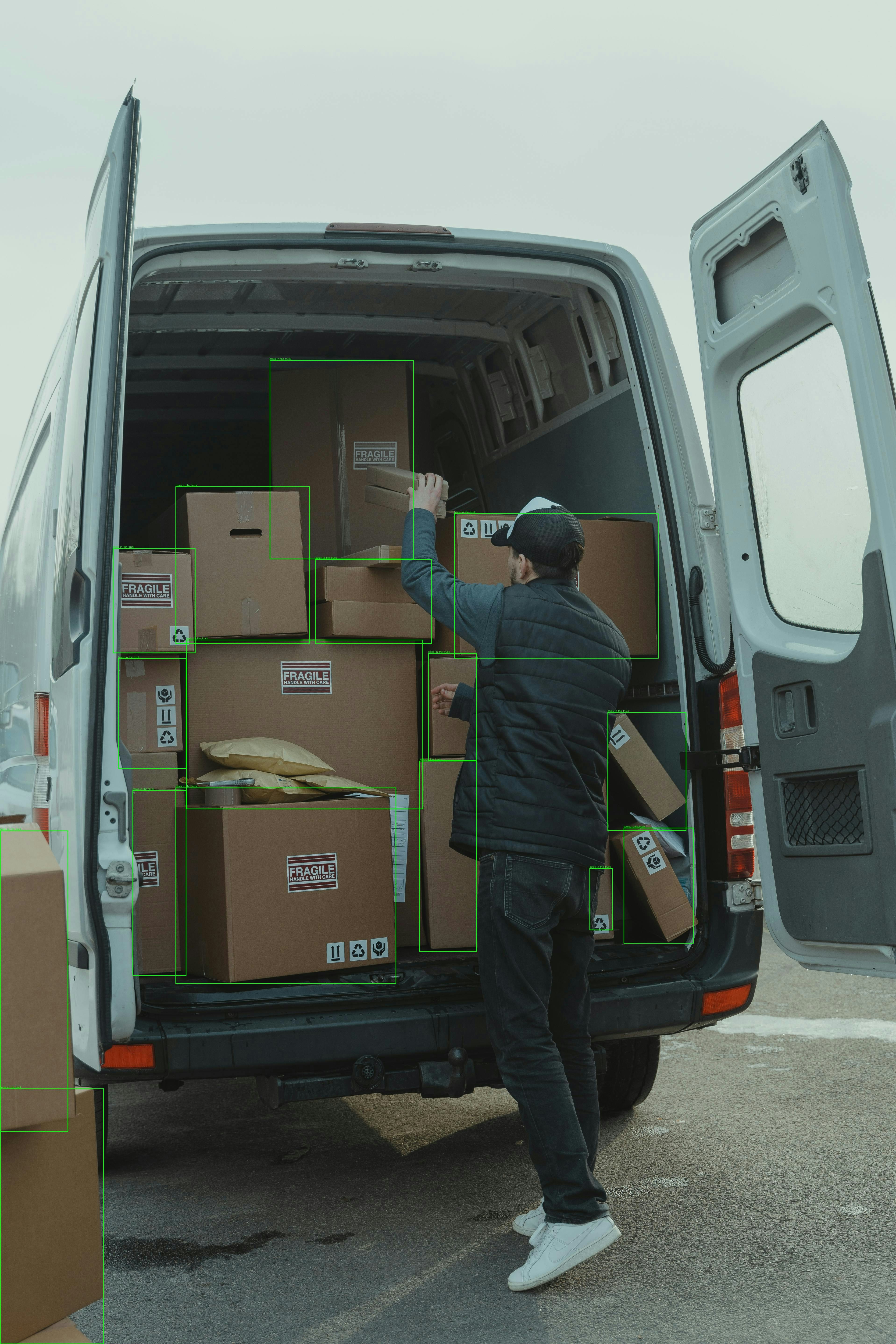
  return scene + text("Find every shipping box in the truck. Return one bounding box per item.")

# run the model using the `perceive` decorator
result = detect_boxes(str(IMAGE_PATH))

img = Image.open(IMAGE_PATH).convert("RGB")
draw = ImageDraw.Draw(img)

# rescale the bounding boxes and draw them
for idx, box in enumerate(result.points or []):
  # Scale the box from normalized coordinates (0-1000) to pixel coordinates
  scaled_box = scale_box_to_pixels(box, width=img.width, height=img.height)
  
  top_left, bottom_right = scaled_box.top_left, scaled_box.bottom_right
  draw.rectangle([top_left.x, top_left.y, bottom_right.x, bottom_right.y], outline="lime", width=3)
  label = box.mention or getattr(box, "label", None) or f"box {idx + 1}"
  draw.text((top_left.x, max(top_left.y - 12, 0)), label, fill="lime")

img.save("truck_scene_annotated.jpg")
print("Annotated image saved to truck_scene_annotated.jpg")

# show the image
img.show()
Perceptron’s models use a 1–1000 normalized coordinate system for every point, box, and polygon. Convert back to pixel coordinates before rendering overlays. See coordinate system for conversion helpers.
5

Run the code

python quickstart.py
You should see truck_scene_annotated.jpg appear in your directory:Annotated boxes
Explore our developer guides

Now that you’ve made your first Perceptron request, explore other capabilities and go deeper on the SDK.